Linux Mint 11 comes with updated software and brings refinements and
new features to make your desktop even more comfortable to use.
Multimedia codecs and extra applications
Linux Mint 11 comes as a liveDVD. A liveCD is also available for
people without a DVD burner or distributors established in the USA and
Japan. The liveCD comes with less applications, no multimedia codecs and
no restricted software, making it fit within 700MB and safely
distributable in countries where the legislation allows patents to apply
to software.
From the liveCD, the installation of codecs and extra applications is now easier than ever.
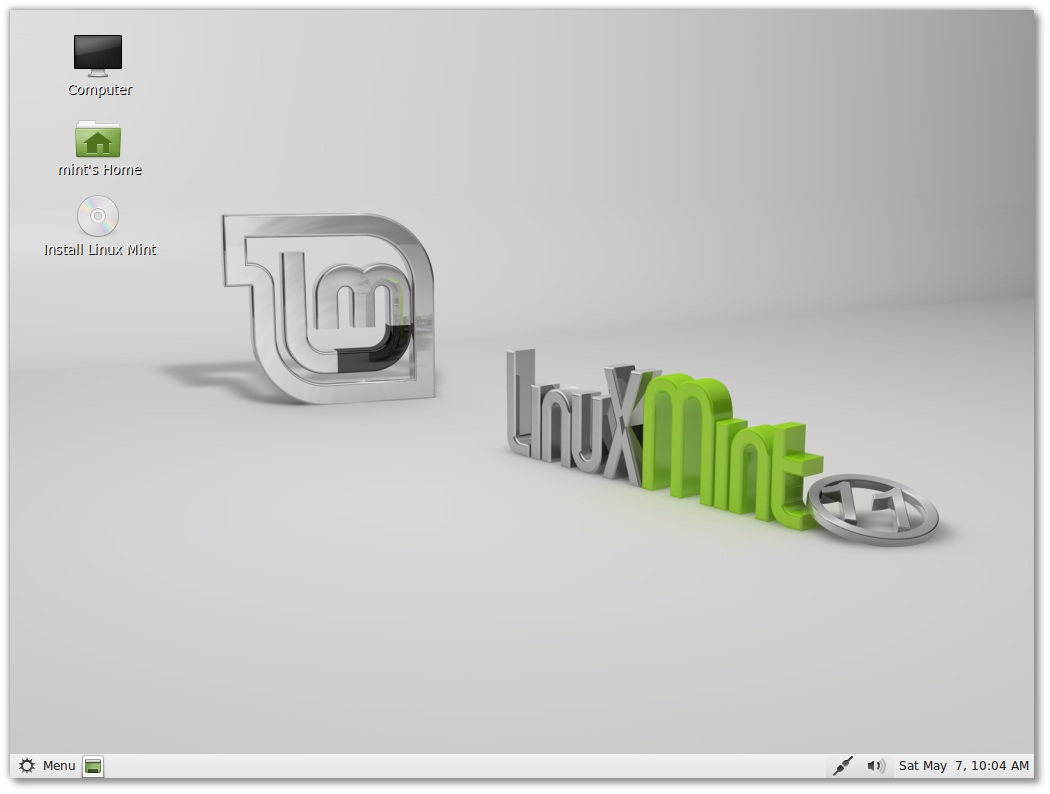
You'll notice two links in the Welcome Screen:
- Upgrade to the DVD Edition
- Install Multimedia Codecs
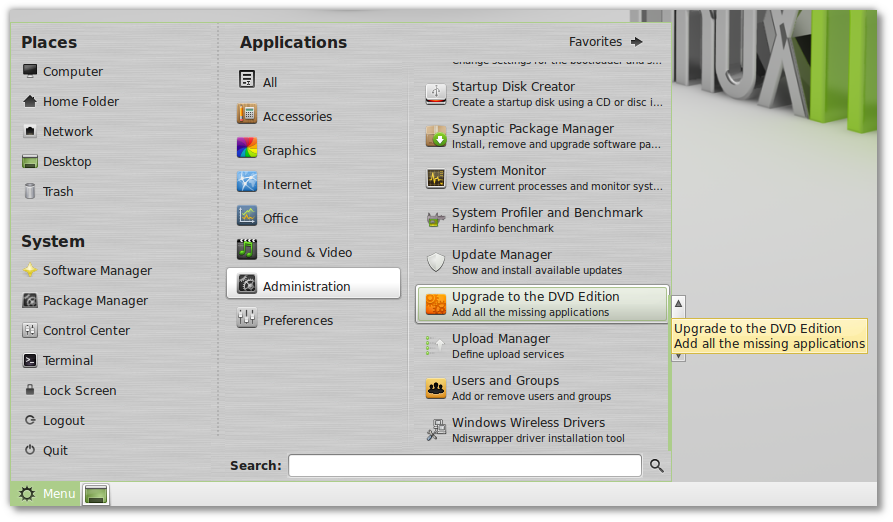
There are also links in the Menu:
- Menu->Sound and Video->Install Multimedia Codecs
- Menu->Administration->Upgrade to the DVD Edition
 Open the menu, click on the mouse, and all the missing software is installed.
With two clicks of the mouse you'll have all the missing
components installed on your system: Full multimedia support, VLC, Gimp,
Giver, Tomboy, LibreOffice-Base, Java, Samba, additional fonts,
backgrounds, themes, icons, and everything that makes Linux Mint a
complete, out of the box, operating system.
Once these components are installed, the links will disappear from the Welcome Screen and in your menu.
A new link was also added in Menu->Preferences, to launch the
Welcome Screen after it's been closed or told to no longer appear when
you log in.
The Software Manager
Many improvements were made to its graphical interface, and the Software Manager now looks much more polished.
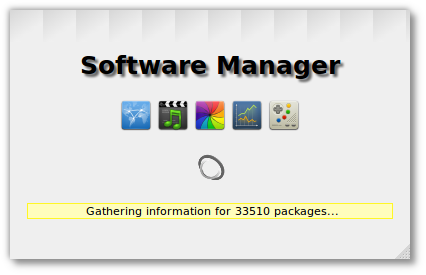
A splash screen appears when you launch it:
 A new splash screen for the Software Manager
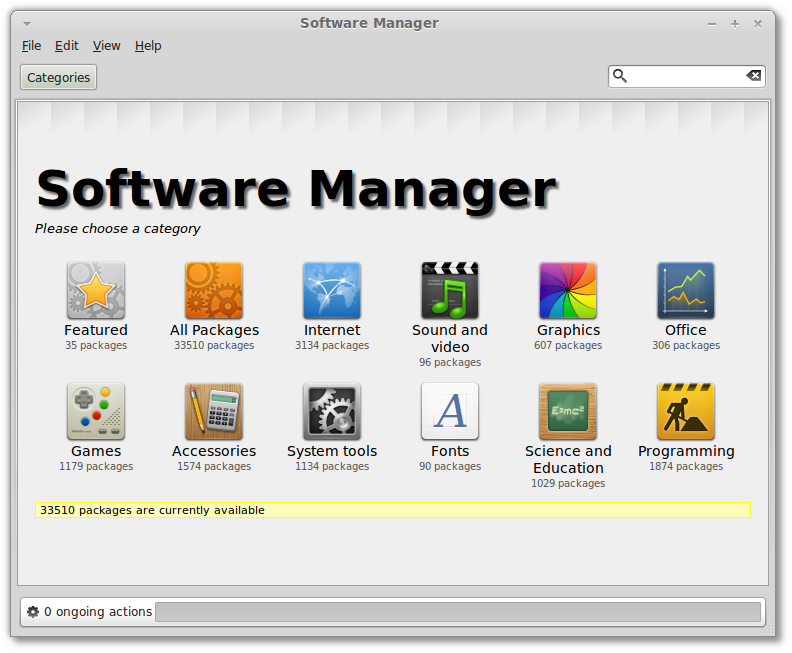
The main screen features bigger category icons, a new template and a new "Fonts" category:
 The Software Manager in Linux Mint 11
Application screens were visually improved, not only in the way
they look but also in their layout and the information they show. For
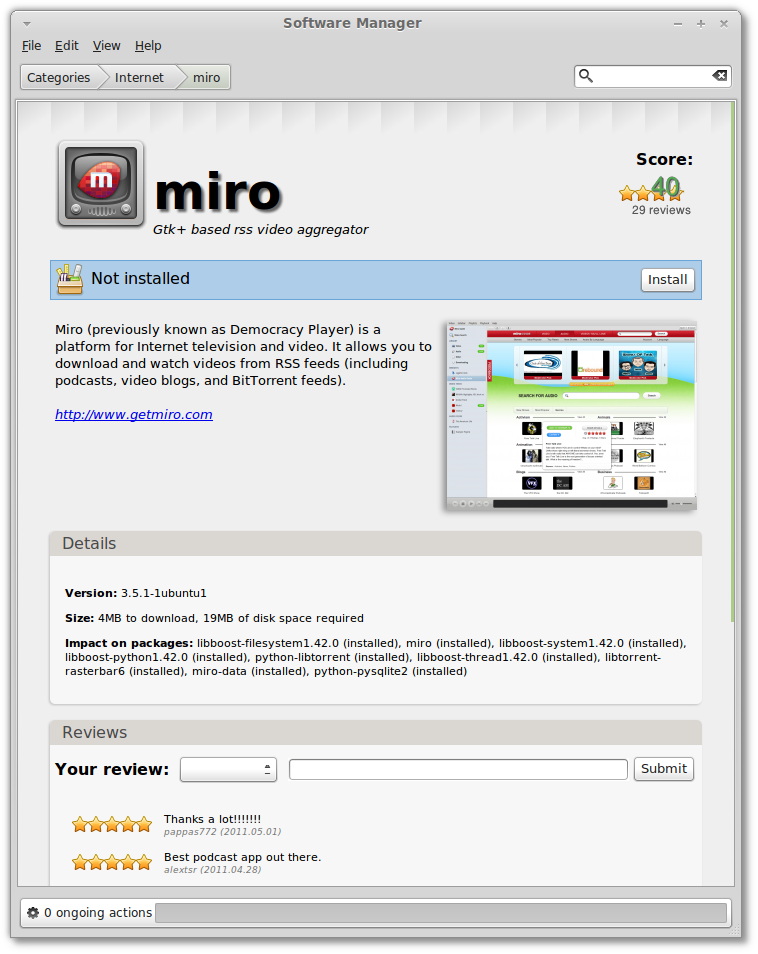
instance, the Software Manager now runs a simulation prior to showing
you the application, so when you look at it, it can tell you precisely
which packages would be added or removed to your system, how much data
would be downloaded and how much space would be taken on the hard drive,
may you decide to press the Install button.
 Download size, installation size, impact on packages, the Software Manager now shows more accurate information
Application icons are now gathered not only from the
mintinstall-icons package but also from your icon theme and generated at
runtime if need be. This helps the Software Manager in showing more
icons than before, whether mintinstall-icons is installed or not.
By default, the Software Manager now searches in the package
names but also in their summary. This makes searches longer but more
accurate than before. You can change this by clicking
"Edit->Preferences->Search in packages summary".
The Update Manager
The Update Manager is faster than before. It used to check your
Internet connection, update its rules and look for package updates.
Thanks to some refactoring and code changes it now only looks for
package updates. The rules (which define the safety level for each
package) are now embedded within the Update Manager and no longer need
to be downloaded. When a new version of the rules is available, a new
version of the Update Manager is released. The Update Manager then
ignores all other updates. Afer updating itself it is restarted, so
you're always using the latest Update Manager with the latest rules and
it doesn't need to check the rules every time it looks for updates. The
result is a safer yet faster Update Manager.
One of the biggest improvement made to the Update Manager is how
it now handles dependencies. It only shows updates, not their
dependencies. If the ugprade of a package requires additional changes to
your system a dialog pops up with a summary to show you which packages
will be installed or removed. This brings a permanent fix to the
notorious "Broken packages" message that used to appear before, and it
also makes it much clearer which updates are available and what effect
do their installation have on the system.
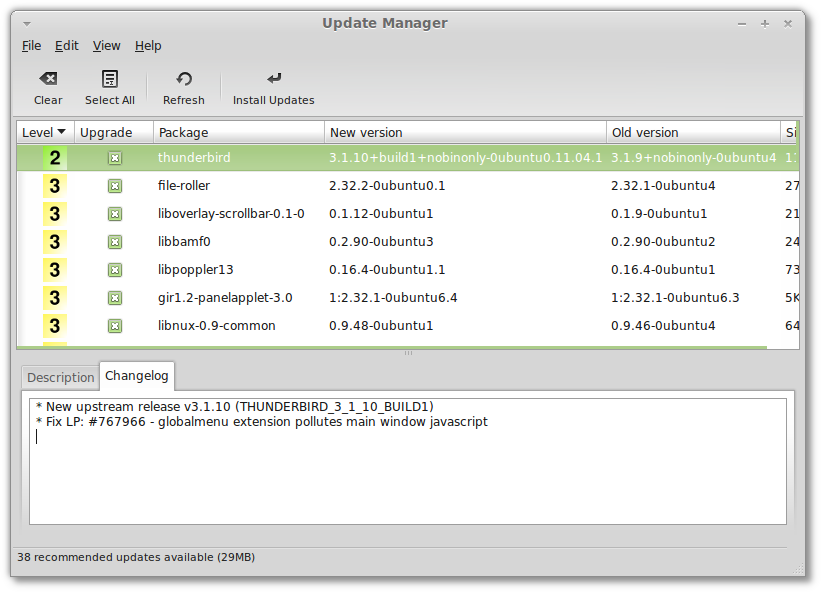
 A faster and more reliable Update Manager
Visual improvements were also made to the graphical interface:
- All dialogs are now modal
- When an upgrade is successful the Update Manager hides
itself, you no longer see a "Changes applied successfully" dialog
waiting to be clicked
- Warnings and info tabs no longer appear for updates without warning or additional information
- Changelogs are downloaded asynchronously (in the background), their retrieval is more reliable and they look better than before
The Desktop Settings tool
One of the particularities of Linux Mint is to show humorous quotes
in the terminal. There's nothing like seing a cow tell a bad joke as
you're getting ready to type some serious administration commands.
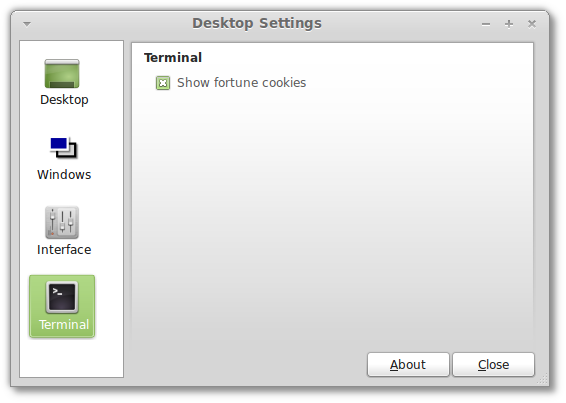
Some people like these quotes, and some people don't. Like everything
else in the system it needed to be easily switched ON or OFF and so it
was added to the Desktop Settings tool.
 Enable/Disable fortunes in the terminal
The Desktop Settings tool is now "desktop-agnostic". Originally
developed for Gnome, it now detects which desktop is running and shows
settings specific to that desktop. It will be used in the future in all
editions of Linux Mint and offer additional settings to KDE, Xfce, LXDE
and Fluxbox users.
Artwork improvements
Linux Mint 11 uses the same GTK and icon themes as the previous release and brings further improvements.
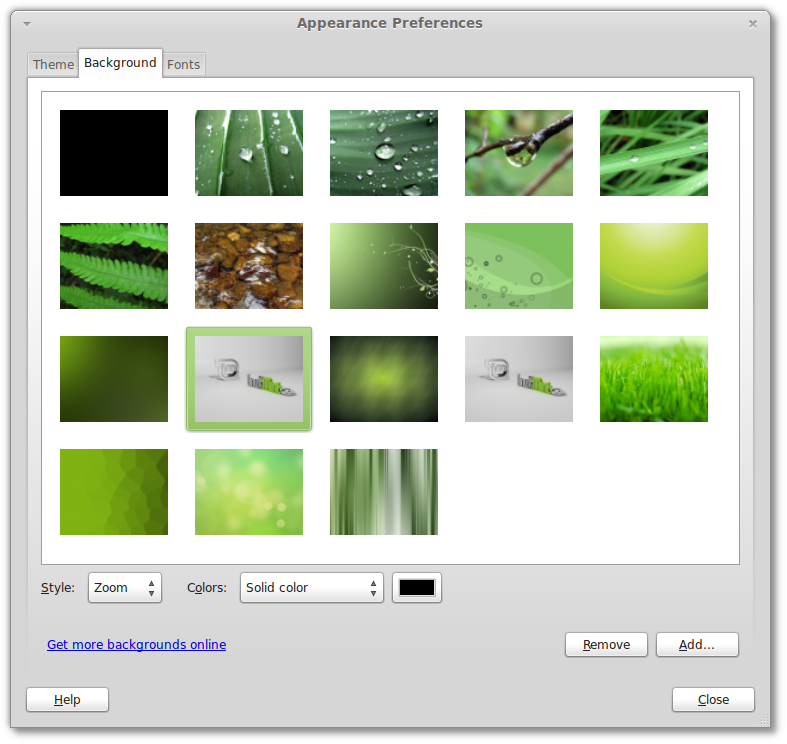
Backgrounds: This default background shows a 3D scene featuring the Linux Mint logo. It comes from an artist called
Gelsan. Additional quality backgrounds are also available, including "Spring", "Bubbles" and "Bring me to life" by
Pr09studio and some beautiful photographs from
Jyothish Kumar P.G (aviatorjk).
 Some quality backgrounds
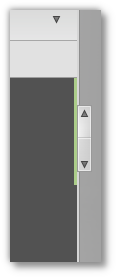
Overlay scrollbars: Linux Mint 11 inherits the upstream overlay scrollbars and enables them by default.
 Overlay scrollbars in Linux Mint 11
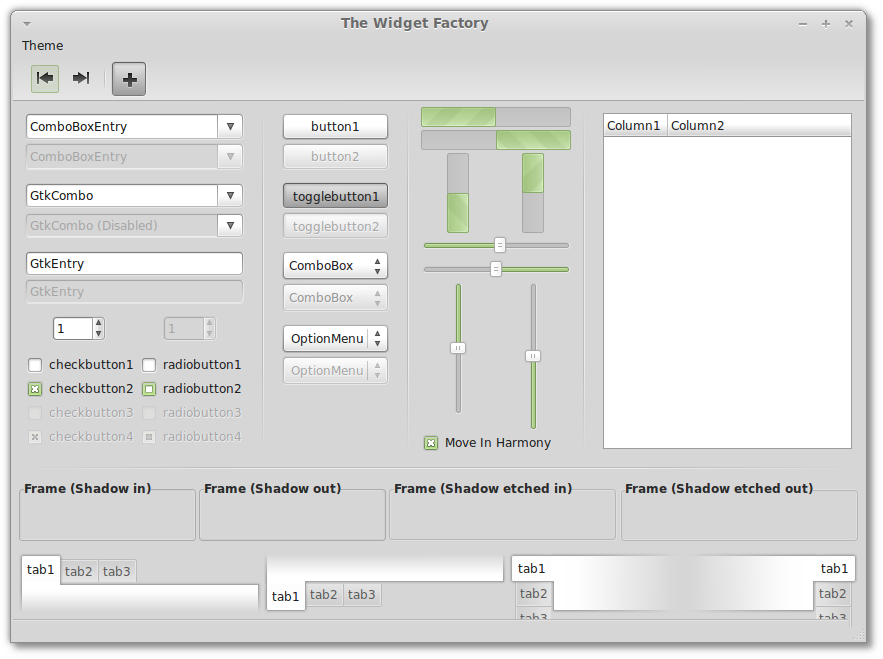
Mint-X theme: Many improvements were brought to Mint-X,
including better integration with Deluge, Synaptic, Gimp and Banshee, as
well as brand new round radio buttons.
 The Mint-X desktop theme
mint-search-addon: Firefox 4, Chromium and Opera come with
an improved mint-search-addon plugin. The new plugin looks more
polished than before, it comes with bug fixes and lets you easily extend
your search to other popular websites such as Wikipedia, Youtube, eBay,
Amazon, IMDB, flickr, Yahoo, Answers.com and many Google services
(images, videos, maps, news, translate..etc)
Plymouth boot screen: Plymouth loads late in what is now a
very fast boot sequence. It also fails to support most video drivers in
high resolution. In Linux Mint 11, the entire boot sequence is black.
You no longer see a logo or loading dots. This makes the boot sequence
more coherent and gives the operating system a more professional look.
System improvements
apt download: A new "apt download" command was introduced which downloads a .deb package locally along with all its dependencies.
Adobe Flash: On 32-bit systems, the stable Flash 10.2 and
Beta Flash 10.3 plugins can now be installed separately. To easily
switch between them, simply type "sudo update-alternatives --config
libflashplayer.so". On 64-bit systems, the Adobe Flash "Square" plugin
runs in native 64-bit.
Software selection
After careful review and based on the scores given by the
community in the Software Manager, the following changes were made to
the default software selection:
- Gwibber is no longer installed by default.
- gThumb replaces F-Spot as the default photo application.
- Banshee replaces Rhythmbox as the default music player.
- padevchooser, paman, paprefs, pavumeter and pavucontrol are no longer installed by default.
- LibreOffice replaces OpenOffice.org as the default office suite.
Upstream components
Linux Mint 11 features the following upstream components: Ubuntu 11.04, Linux 2.6.38, Gnome 2.32, Xorg 7.6.
Download links


 08:22
08:22
 ADITYA


 Posted in: WINDOWS TRICKS

 Beyond
its strong line of pioneering products, lies an interesting and
powerful corporate identity. Apple is probably the only company who did
not want logo design with
their company name in it. Yet, the Apple logo is one of the most
recognized corporate symbols in the world. The first Apple logo was
designed by Jobs and Wayne in 1976, featuring Isaac Newton sitting
under an apple tree. It was inspired by a quotation by Wordsworth that
was also inscribed into the logo that said: “Newton… a mind forever
voyaging through strange seas of thought” with ‘Apple Computer Co.’ on a
ribbon banner ornamenting the picture frame.
Beyond
its strong line of pioneering products, lies an interesting and
powerful corporate identity. Apple is probably the only company who did
not want logo design with
their company name in it. Yet, the Apple logo is one of the most
recognized corporate symbols in the world. The first Apple logo was
designed by Jobs and Wayne in 1976, featuring Isaac Newton sitting
under an apple tree. It was inspired by a quotation by Wordsworth that
was also inscribed into the logo that said: “Newton… a mind forever
voyaging through strange seas of thought” with ‘Apple Computer Co.’ on a
ribbon banner ornamenting the picture frame. That Apple logo was immediately changed by designer Rob Janoff, the man to provide logo design for
Apple, into a multicolored apple with a bite taken out off its right
side, better known as the “rainbow apple”. This was done to commemorate
the discoveries of gravity (the apple) and the separation of light
(the colors) done by Isaac Newton and possibly to tribute the ‘fruit of
the Tree of Knowledge’ in Adam and Eve’s story. Even the term
‘Macintosh’ refers to a particular variety of an apple. But certain
speculations exist about the proper meaning of the Apple logo. Some
believe that the ‘rainbow colored’ Apple logo was used to advertise the
color capability of the Apple II computer. Others, like author Sadie
Plant of Zeroes and Ones, considers the Apple logo as homage
to Alan Turning, the father of modern computing, who committed suicide
using a cyanide-laced apple.
That Apple logo was immediately changed by designer Rob Janoff, the man to provide logo design for
Apple, into a multicolored apple with a bite taken out off its right
side, better known as the “rainbow apple”. This was done to commemorate
the discoveries of gravity (the apple) and the separation of light
(the colors) done by Isaac Newton and possibly to tribute the ‘fruit of
the Tree of Knowledge’ in Adam and Eve’s story. Even the term
‘Macintosh’ refers to a particular variety of an apple. But certain
speculations exist about the proper meaning of the Apple logo. Some
believe that the ‘rainbow colored’ Apple logo was used to advertise the
color capability of the Apple II computer. Others, like author Sadie
Plant of Zeroes and Ones, considers the Apple logo as homage
to Alan Turning, the father of modern computing, who committed suicide
using a cyanide-laced apple.


